 WhoCaller
Getting started
How do I get my WhoCaller ID and blue tick?
Open More › Profile, tap Get your blue tick and verify your mobile number with the SMS code. People you call then see your verified name.
Where to find it
More›App›Profile›Get your blue tick
Steps
- Tap More, then Profile under App.
- Tap Get your blue tick.
- Enter your mobile number and tap Send code.
- Type the code from the SMS and tap Verify. Your blue tick is ready.
← How do I make WhoCaller my SMS app?How do I change the app language to Hindi or English? →
Getting started
More guides like this
 0:29
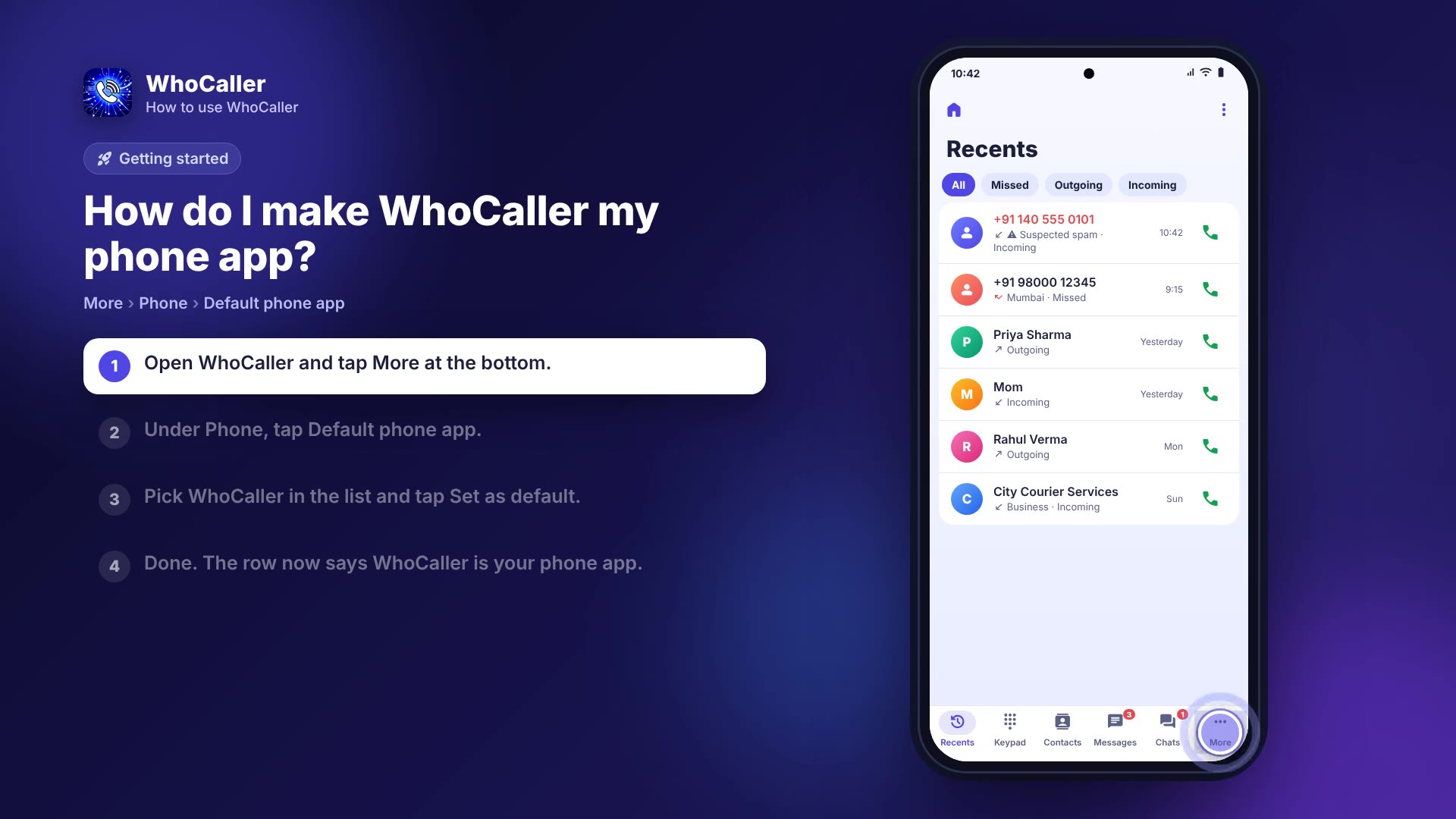
How do I make WhoCaller my phone app?
Open More, tap Default phone app and pick WhoCaller. Then caller names show before the phone rings and spam calls can be rejected.
See the steps →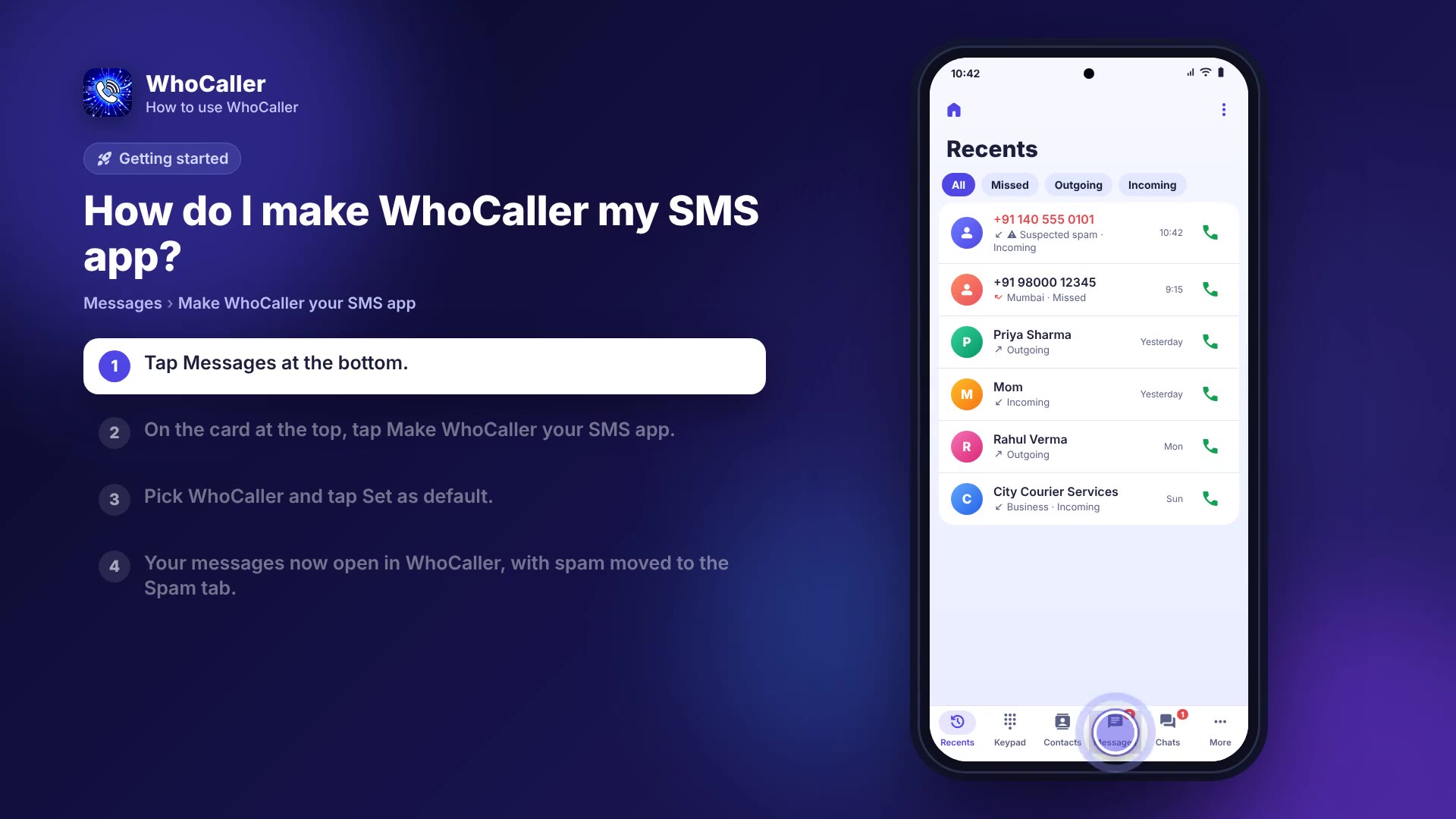 0:30
How do I make WhoCaller my SMS app?
Open the Messages tab and tap Make WhoCaller your SMS app. You get scam warnings on suspicious texts and a Spam folder.
See the steps →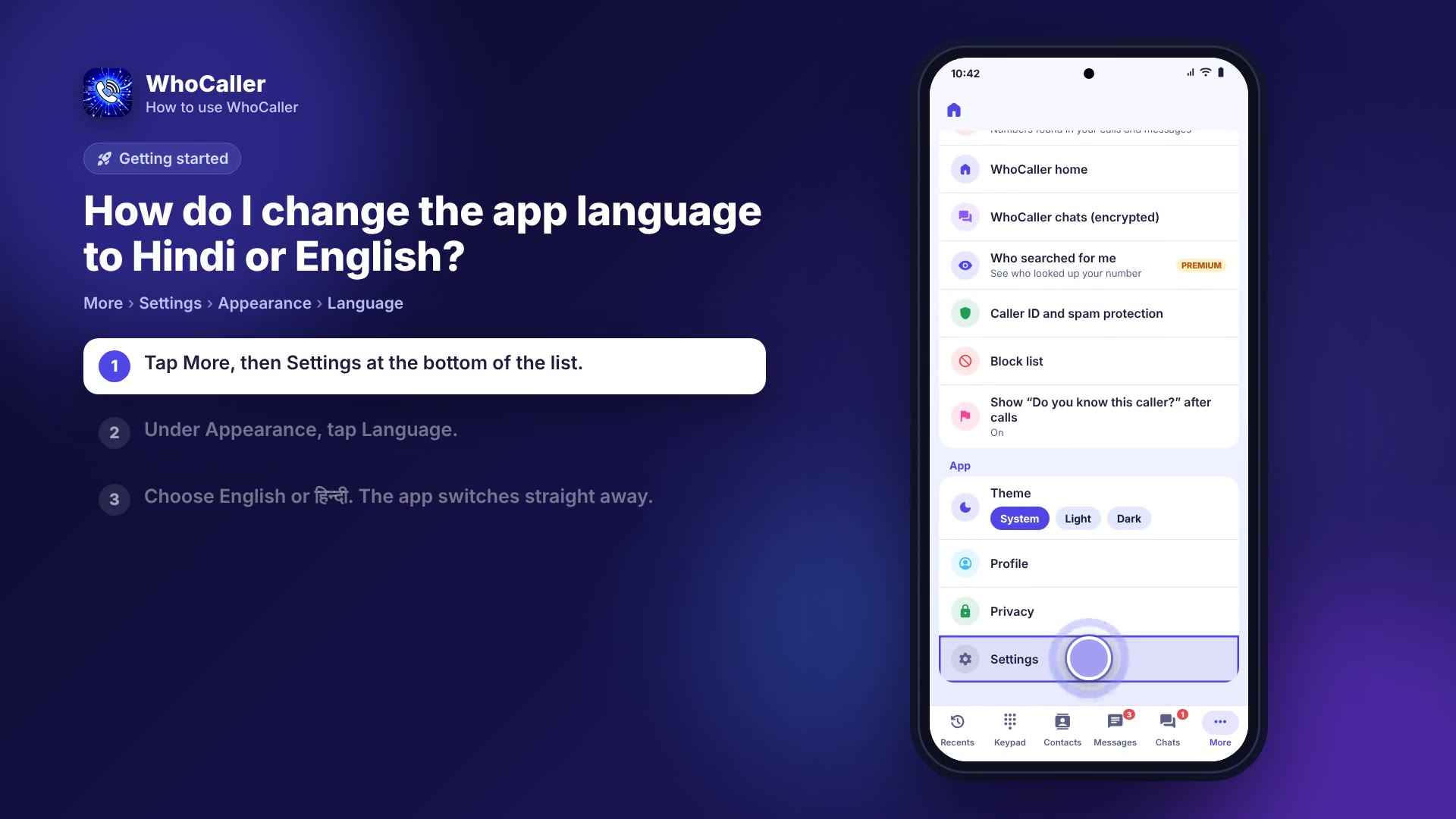 0:24
How do I change the app language to Hindi or English?
Open More › Settings › Language and choose English or हिन्दी. WhoCaller uses English until you pick another language.
See the steps →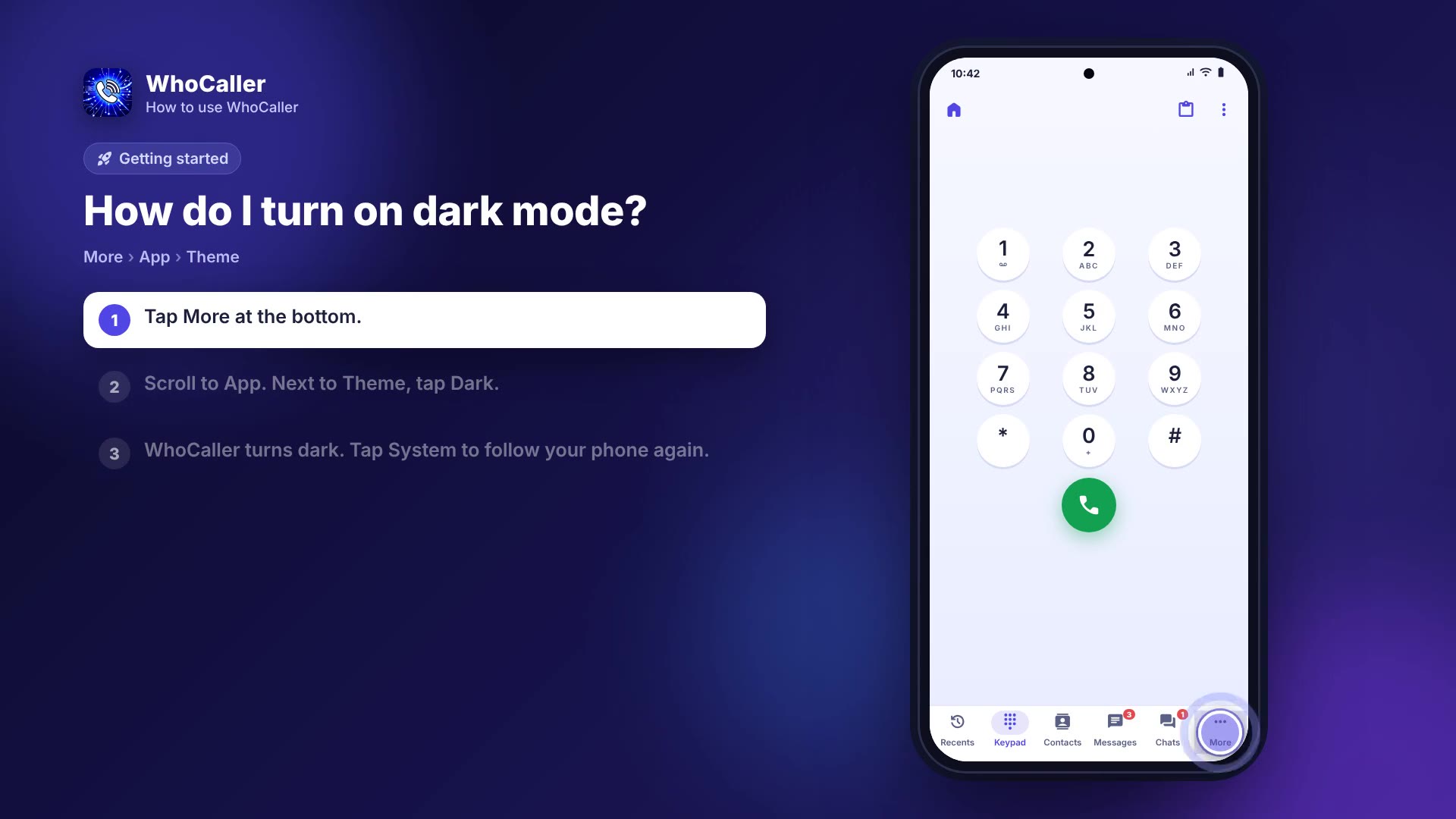 0:24
How do I turn on dark mode?
Open More and, under App › Theme, tap Dark. Pick System to follow your phone’s setting.
See the steps →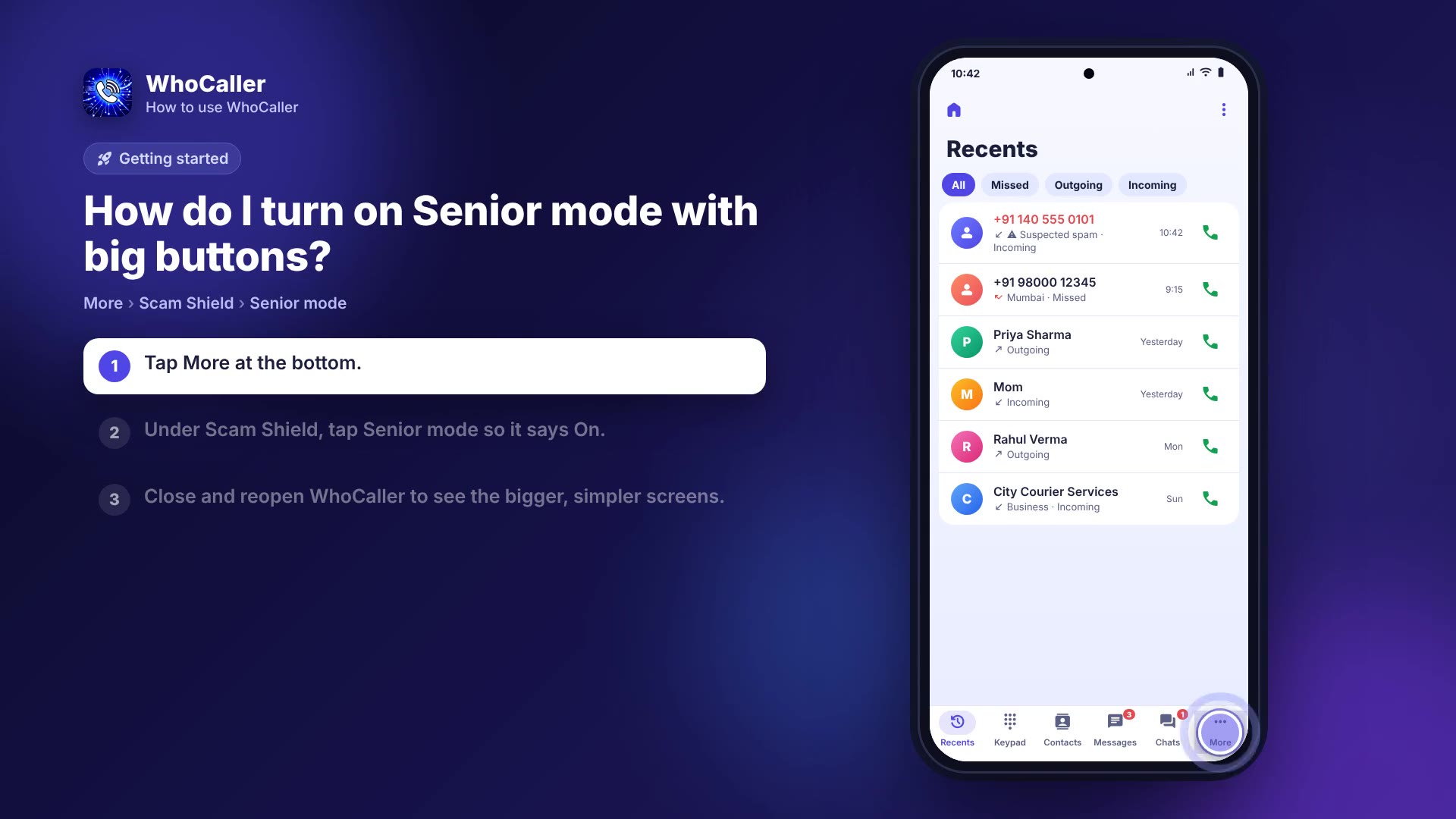 0:24
How do I turn on Senior mode with big buttons?
Open More › Scam Shield and tap Senior mode, then reopen WhoCaller. Buttons and text get bigger and screens get simpler.
See the steps →Get WhoCaller free
Free on Google Play. Android 8.0 or newer.