 WhoCaller
Chat & video calls
How do I turn off read receipts or check a chat’s security code?
In Chats, tap ⋮ › Settings › Privacy › Read receipts. To check encryption, open a chat, tap ⋮ › Security code and compare it with the other phone.
Where to find it
Chats›⋮›Settings›Privacy
Steps
- In Chats, tap ⋮, then Settings.
- Tap Privacy and switch Read receipts off if you like.
- In any chat, tap ⋮ › Security code to compare the code with the other person.
← How do I use WhoCaller chat on my computer?How do I get WhoCaller Premium, restore it or cancel it? →
Chat & video calls
More guides like this
 0:29
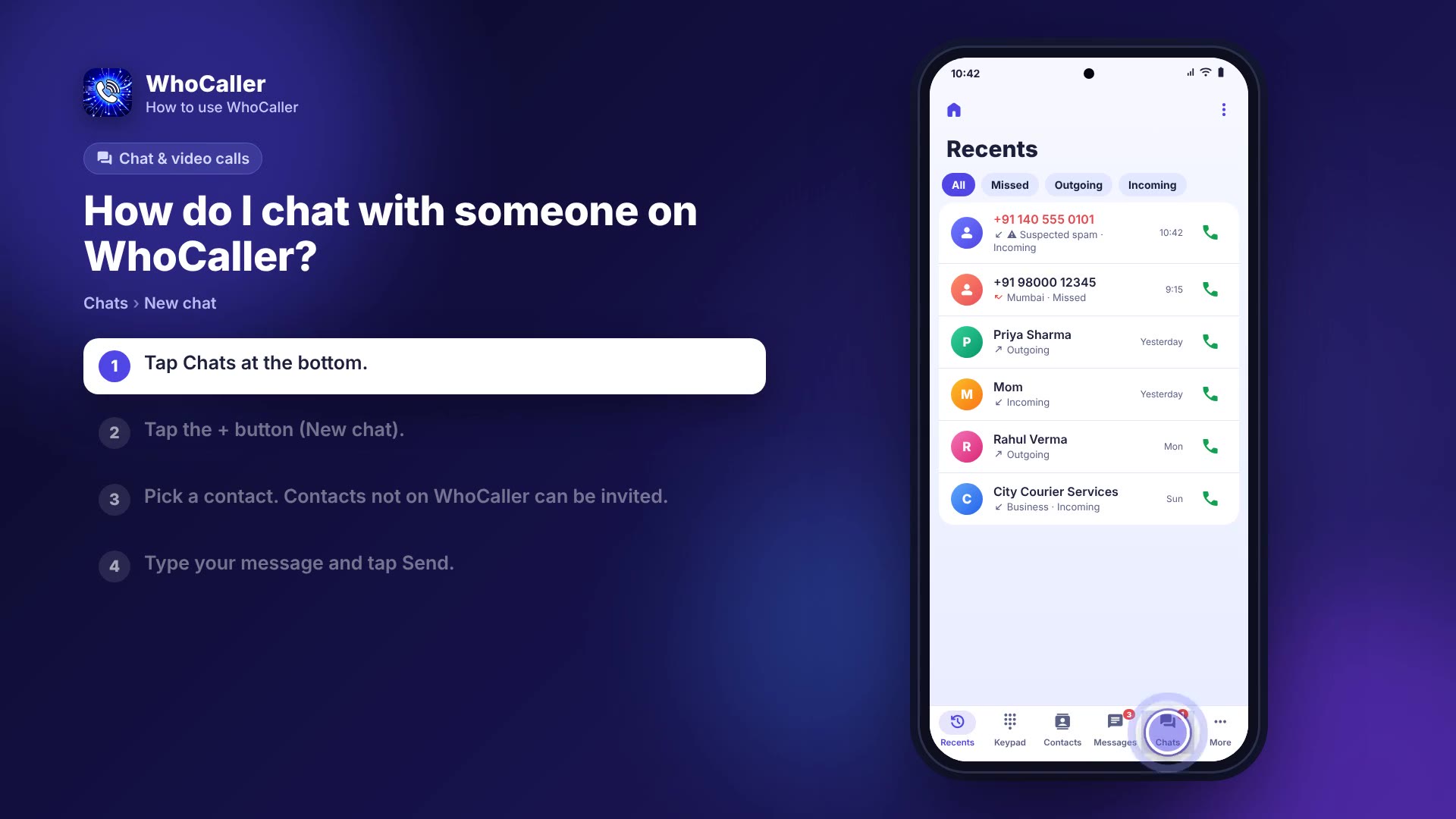
How do I chat with someone on WhoCaller?
Open the Chats tab, tap + (New chat) and pick a contact who uses WhoCaller. Chats are end-to-end encrypted.
See the steps →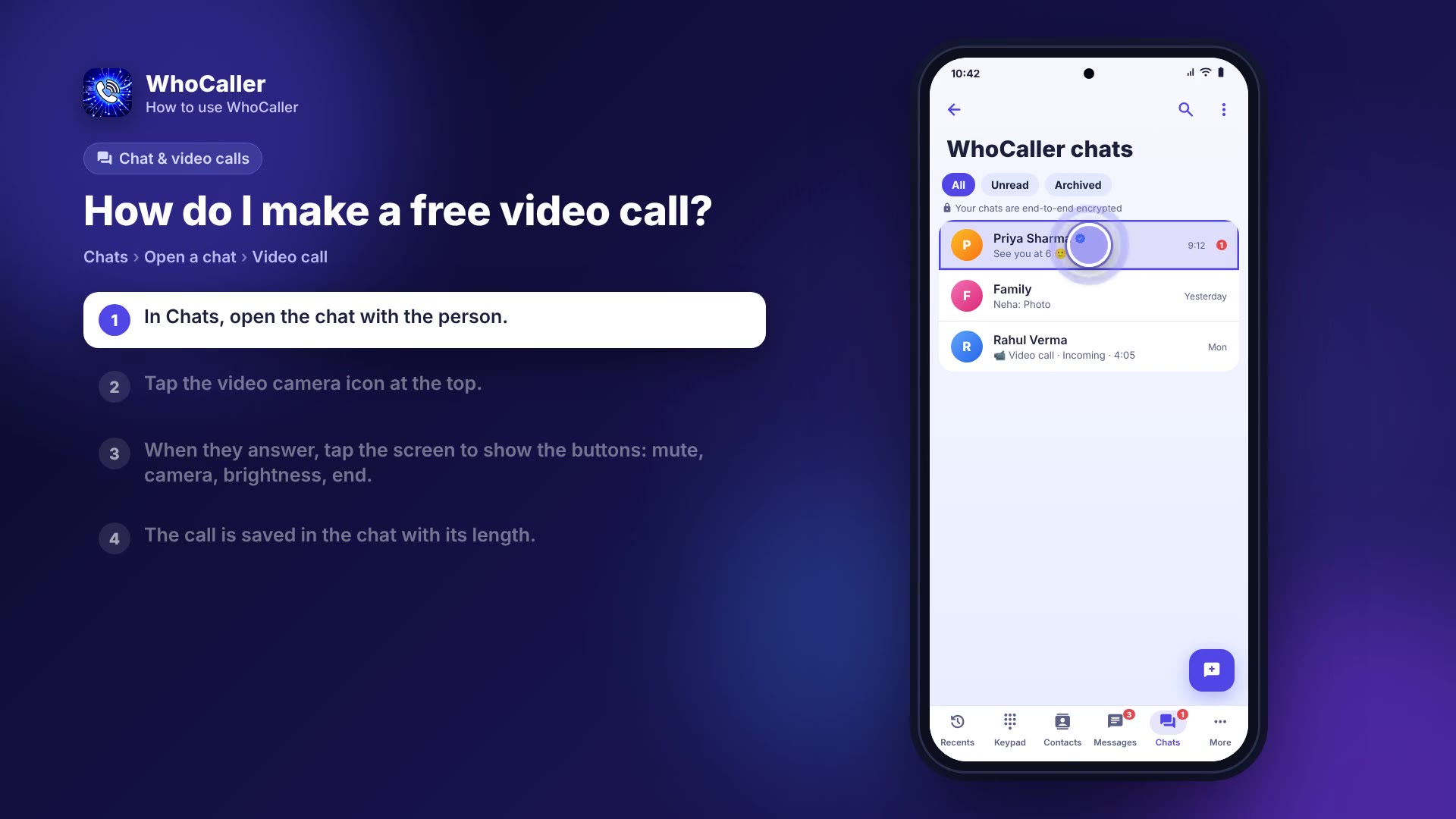 0:30
How do I make a free video call?
Open a chat with a WhoCaller user and tap the video camera icon at the top. During the call you can switch camera, mute, change brightness and turn the phone sideways.
See the steps →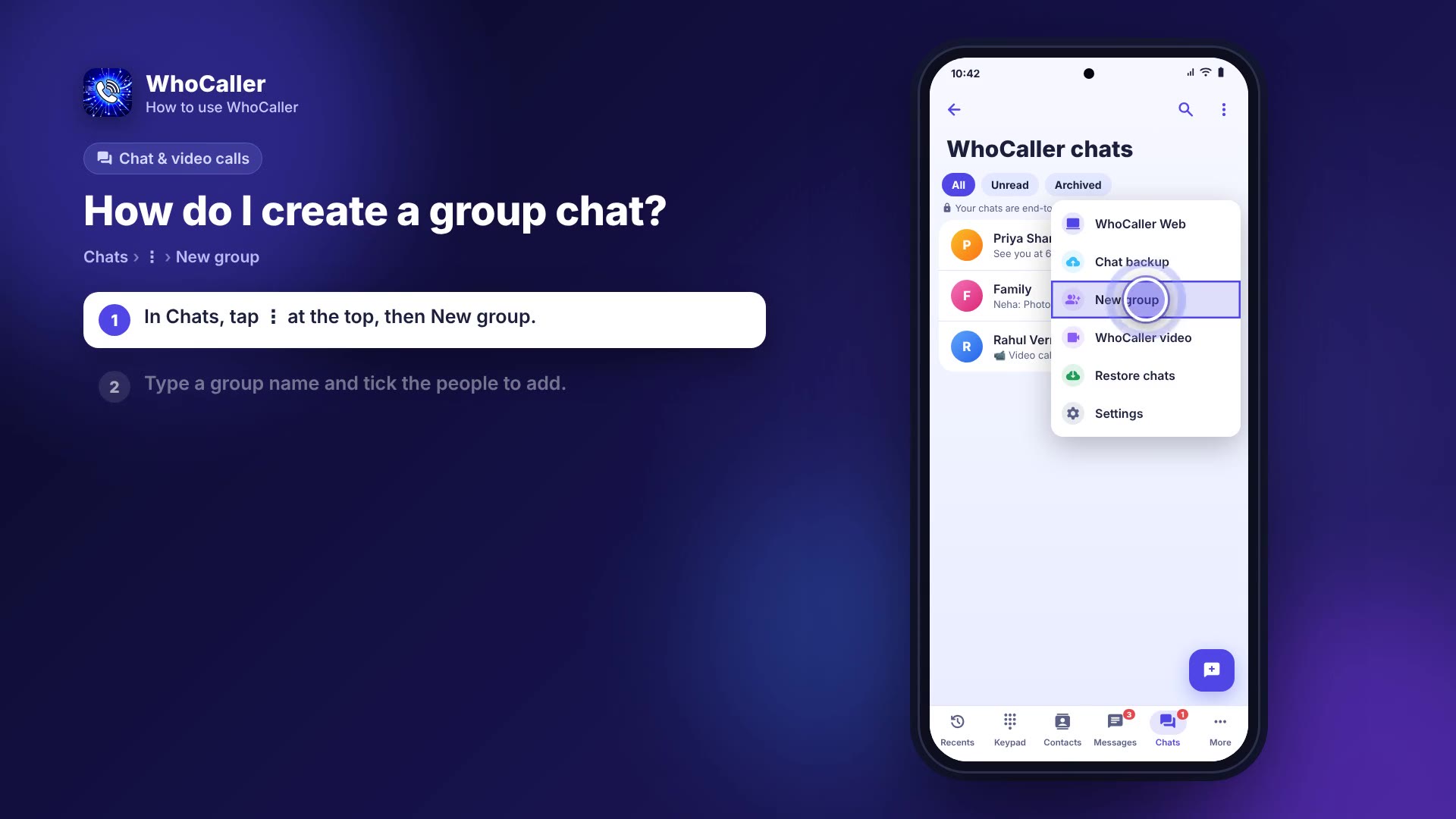 0:19
How do I create a group chat?
In Chats, tap ⋮ › New group, pick the people, type a group name and tap Create.
See the steps →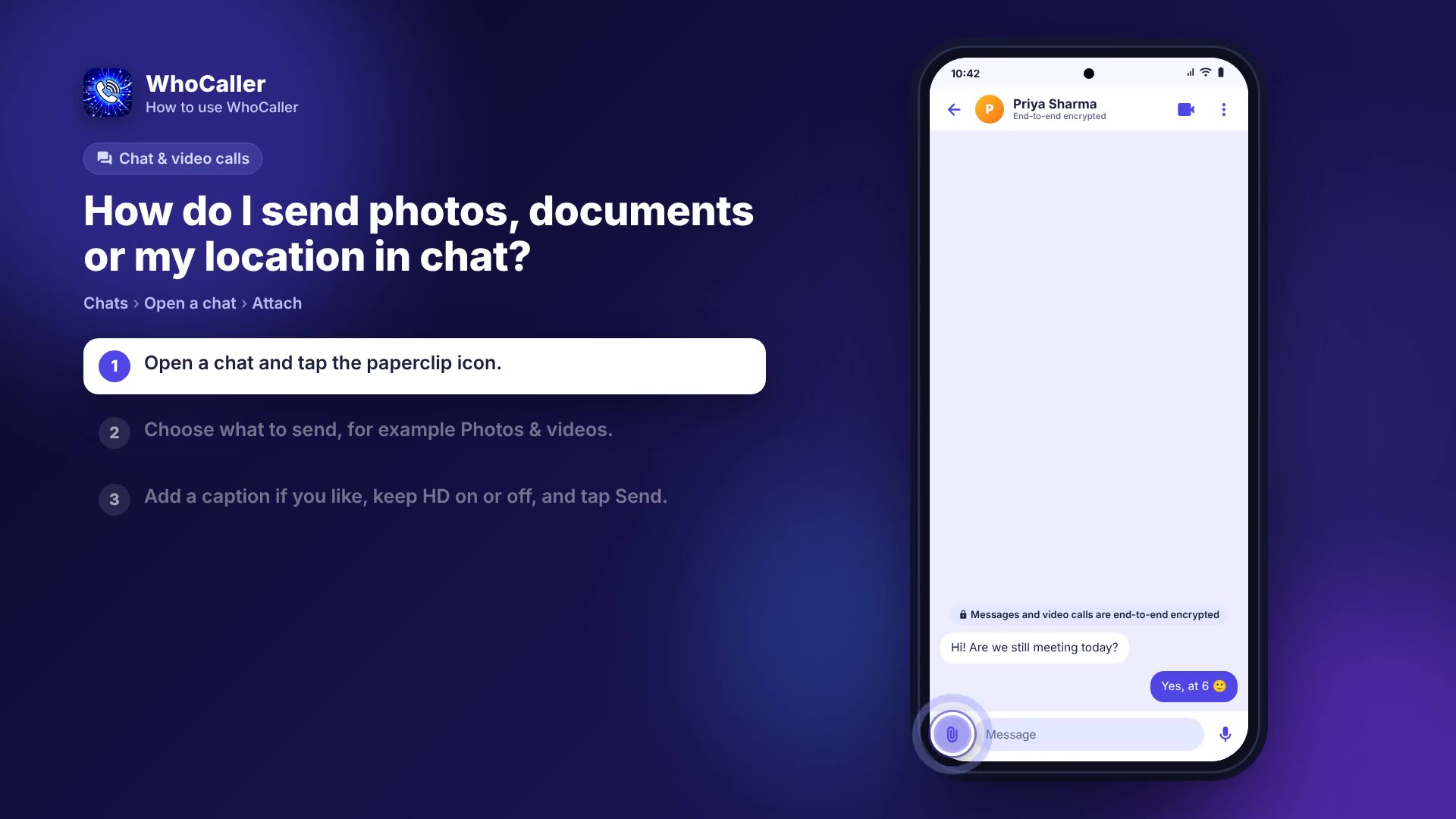 0:24
How do I send photos, documents or my location in chat?
In a chat tap the attach (paperclip) icon and choose Photos & videos, Camera, Document, Audio or Location. You can also share live location for 15 minutes to 8 hours.
See the steps →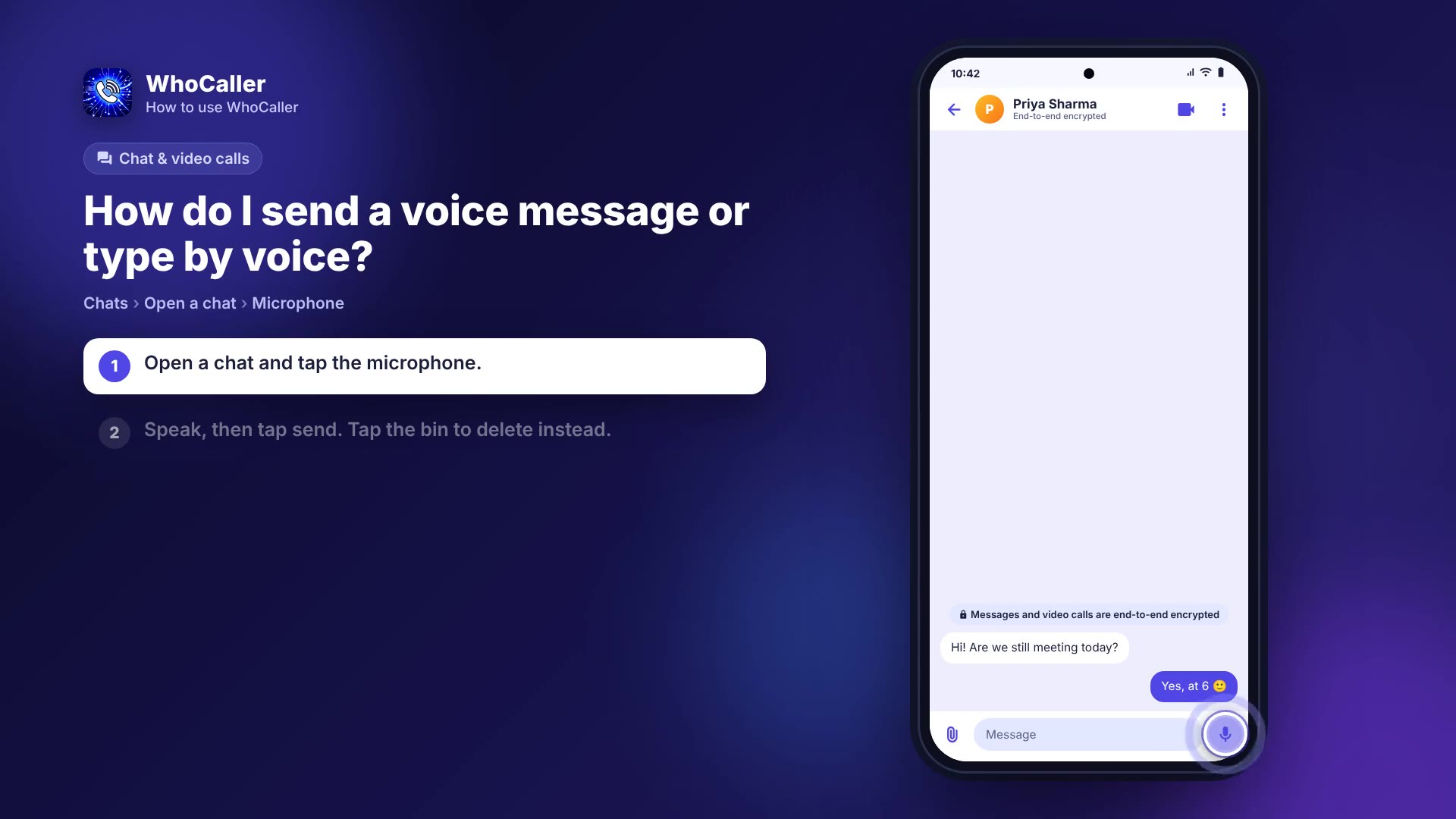 0:19
How do I send a voice message or type by voice?
In a chat, tap the microphone to record a voice message and tap send when done. Use Voice typing to speak and turn your words into text.
See the steps →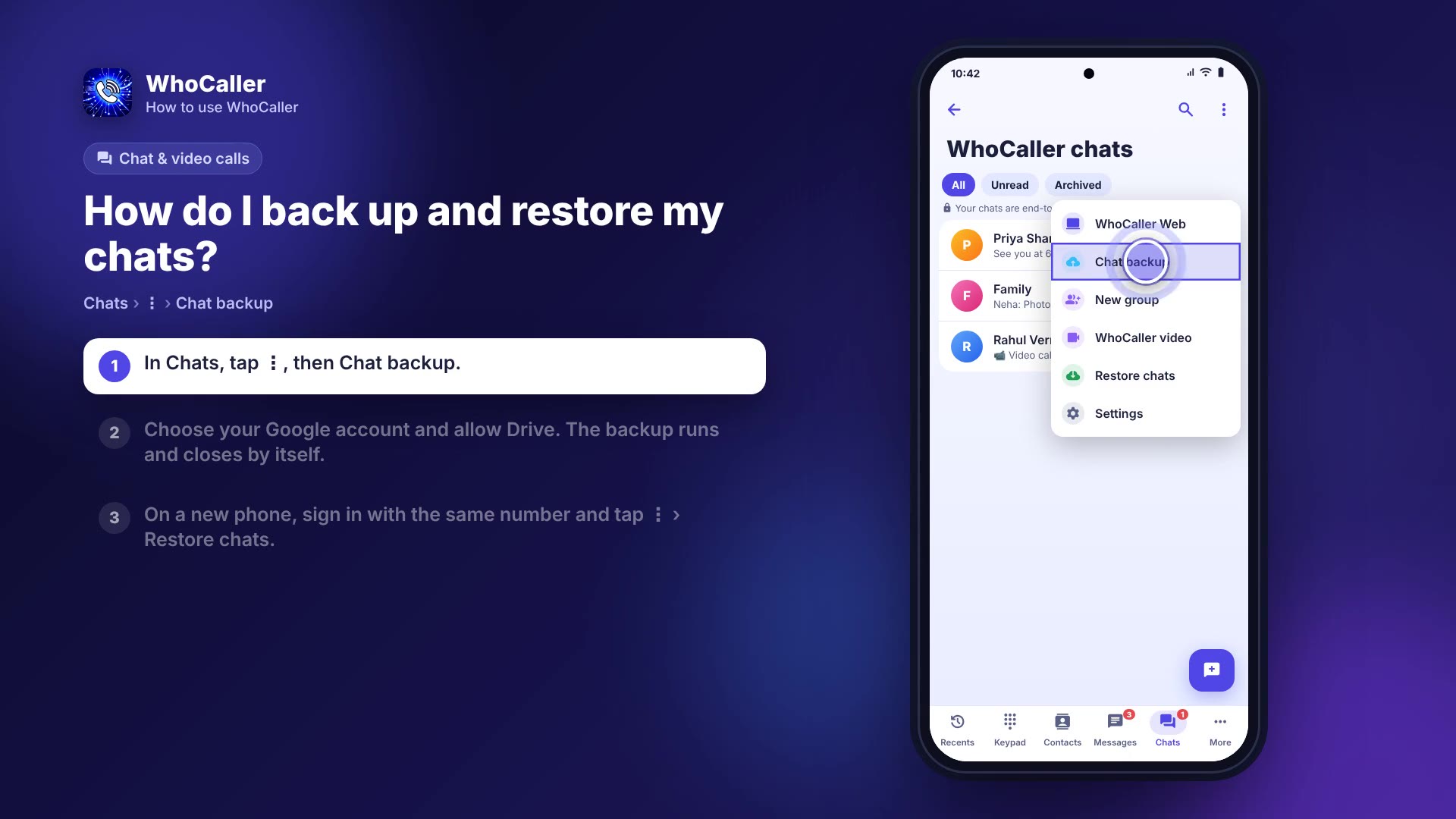 0:26
How do I back up and restore my chats?
In Chats, tap ⋮ › Chat backup to save chats to your own Google Drive. On a new phone, tap ⋮ › Restore chats.
See the steps →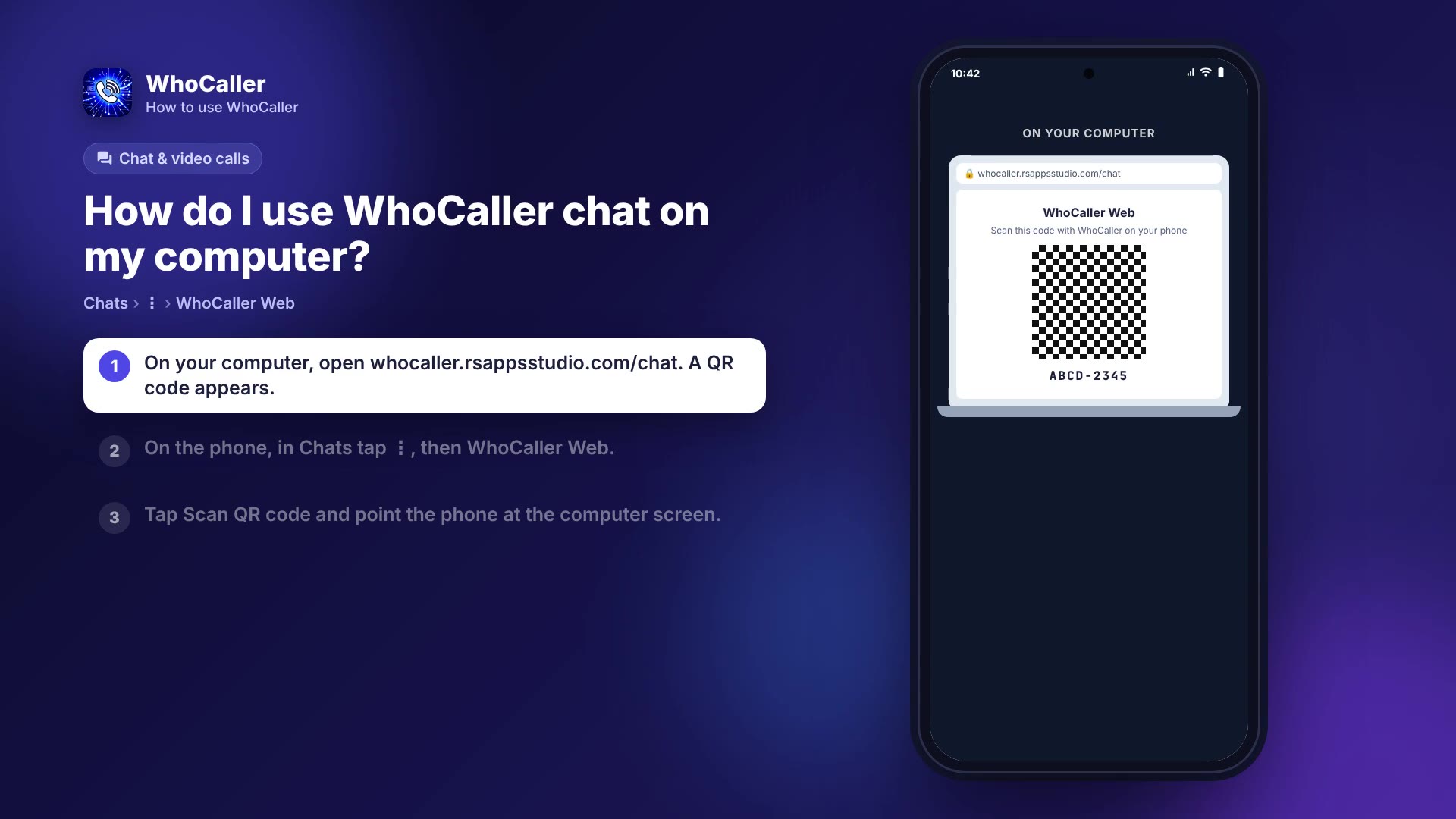 0:25
How do I use WhoCaller chat on my computer?
On the computer open whocaller.rsappsstudio.com/chat. On the phone, in Chats tap ⋮ › WhoCaller Web › Scan QR code and scan the code on the screen.
See the steps →Get WhoCaller free
Free on Google Play. Android 8.0 or newer.